
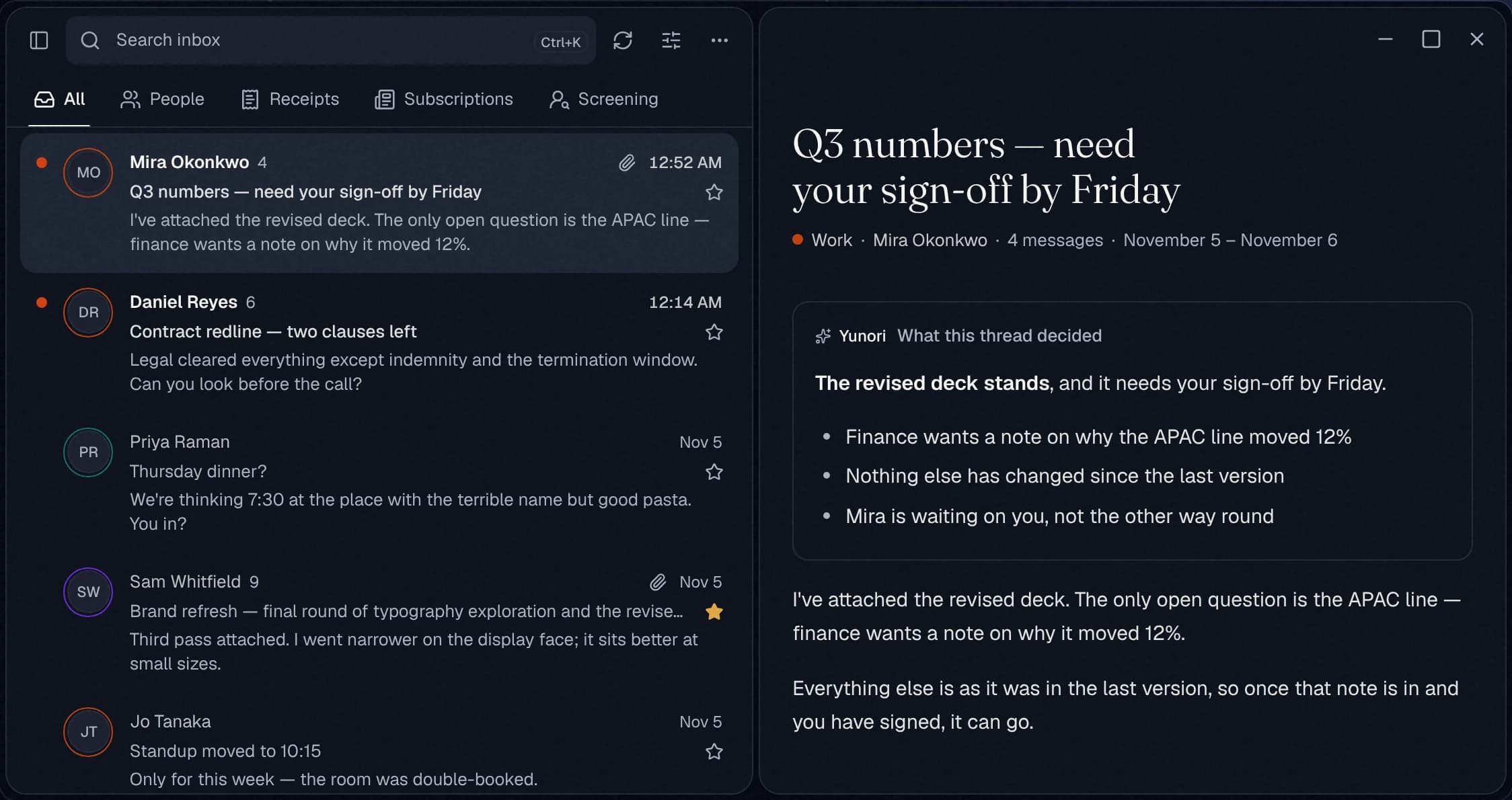
The simplest way to manage multiple email accounts in one inbox is an email client that connects to each mailbox directly over IMAP and shows them in a single list. Forwarding everything to one address also works, but replies then tend to leave from the wrong address. If you rely on Gmail's web settings to pull in other accounts, plan a change now: Google is removing that route for third-party mailboxes.
Why one inbox for several accounts?
Most people end up with more addresses than they planned: a personal Gmail, a work address on the company domain, an old Outlook or Yahoo account that still gets bank statements, maybe a Zoho or iCloud address for a side business. Each one comes with its own tab, app and notifications.
Checking them one by one costs more than time. Replies get missed because they landed in the mailbox you open least. Answers go out from the wrong address. And a search for "that invoice from March" has to be run three times.
A combined inbox fixes the reading side. The harder part is keeping replies, search and sign-ins working for every account at once.
What are your options?
There are three common routes. They differ in where your mail lives and which address your reply comes from.
| Email client (IMAP) | Forwarding to one address | Gmail on the web pulling other accounts | |
|---|---|---|---|
| Where mail stays | With each original provider | Copied into the main mailbox | Copied into Gmail |
| Replies leave from | The address the mail came to | The main address, unless you set up sending aliases | Depends on "Send mail as", which is ending |
| Read and delete stay in sync | Yes, both ways | No | No |
| Effort | Add each account once | A rule at each provider | Settings in Gmail |
| Future | Stable, IMAP is an open standard | Stable | Being removed for third-party accounts |
Option 1: an email client that connects to every mailbox
An email client reads your mail where it already is. You add each account once, and the client keeps a live connection to each provider, usually over IMAP. Reading a message marks it read everywhere. Deleting it deletes it at the provider. A reply leaves from the account it came to.
Most mainstream clients can show several accounts together:
- Apple Mail on Mac, iPhone and iPad has an All Inboxes view.
- Thunderbird, free on Windows, Mac and Linux, has unified folders.
- Outlook lets you add Gmail, iCloud, Yahoo and other IMAP accounts alongside a Microsoft account.
- The Gmail app on Android and iPhone can add non-Google accounts too.
The trade-off is that the combined view lives in that one app. Switch from phone to laptop and you may be setting the accounts up again, with a different look on each device.
Option 2: forward everything to one address
Most providers let you forward incoming mail automatically. Point every old address at your main one and you have one inbox.
It is the quickest fix, and it fits accounts you only read, like an old address that gets statements and newsletters. It breaks down for accounts you answer from:
- Replies come from the main address unless you add each old one as a sending alias.
- Nothing syncs back. Reading, filing or deleting in the main inbox does nothing at the original provider, which keeps filling up.
- Spam filtering runs twice, and a forwarded message can fail the sender's SPF or DMARC checks and land in spam.
Option 3: Gmail on the web, and what is changing
For years, Gmail's web settings could fetch mail from other accounts over POP ("Check mail from other accounts"), apply Gmail's spam filter and categories to them (Gmailify), and send replies as those addresses ("Send mail as").
Google is retiring this for third-party accounts. Its support page on the change says POP fetching, Gmailify and "Send as" from third-party addresses will be removed in January 2027, with new setups possibly restricted before then. "Send as" for other Gmail addresses and Google Workspace aliases keeps working, and so does adding non-Google accounts in the Gmail mobile app.
If your work or business mail reaches you this way today, move before the cutoff. A client that connects to each mailbox directly is the closest replacement. Forwarding is the fallback for accounts you never reply from.
How to set it up without breaking anything
- List every address you use and mark each one: do you reply from it, or only read it?
- Check how each provider signs in. Gmail, Outlook and most large providers expect you to sign in through their own page, or to create an app password once two-step verification is on. Your normal password typed into a third-party app often will not work.
- Add the accounts you reply from to your client over IMAP. Send a test reply from each and check which address the recipient sees.
- Forward the read-only accounts, or add them too if you have room.
- Keep your domain's email settings intact. If you use your own domain, its MX and SPF records decide where mail is delivered and who may send for it. Our guide to how a domain and DNS take a website live covers what those records do. Moving which app you read mail in should not touch them.
- Turn off the old fetch rules in Gmail once the new setup has run for a week, so mail is not pulled in twice.
What about shared inboxes like support@?
A combined inbox is for one person reading their own accounts. A team answering the same address, like support@ or sales@, has a different problem: two people replying to the same customer, or nobody replying because each assumed the other would.
For that, use a shared inbox or helpdesk that assigns each conversation to one person. If most of that mail is the same handful of questions, read our guide to automating first-line customer support. If the inbox has become where you track leads and deals, it may be time for a CRM; see what a CRM is and whether you need one.
Where AI fits in a combined inbox
Once every account is in one place, AI features become more useful: a summary of a long thread, a draft reply in your usual tone, or a plain question like "when is the plumber coming?" answered across all your mailboxes.
Two things are worth checking first. Find out where your mail is sent for processing, and whether it is used for training. And make sure nothing is sent without you approving it. An assistant that drafts is helpful; one that replies on its own is an AI agent, and needs the same human checks as any other.
Yunori, our email client
We build Yunori, an email client that puts Gmail, Google Workspace, iCloud, Zoho, Fastmail and any IMAP mailbox in one list. Mail stays with your provider, and replies leave from the mailbox they came to. Its AI features summarise threads and draft replies, never send without you, and can be switched off entirely. It runs in the browser and as a desktop app for Windows and Linux, and it is free while we build it.
We make it, so weigh that. Apple Mail, Thunderbird and Outlook are all reasonable choices too, and the steps above apply whichever you pick.
Frequently asked questions
Can Gmail still check mail from other accounts?
For now, if you already use it. Google's support page says POP fetching and Gmailify for third-party accounts will be removed in January 2027, and new setups may be restricted before that. The Gmail app on Android and iPhone can still add non-Google accounts.
Is forwarding or IMAP better?
IMAP, for any account you reply from. It keeps your mailbox in sync and replies come from the right address. Forwarding suits old addresses you only read.
Will combining inboxes change my email address?
No. An email client only reads and sends through your existing accounts. Your addresses, and the provider that hosts them, stay the same.
Is it safe to give an email app my account access?
Prefer apps that sign in through the provider's own page or use an app password, so you can revoke access later without changing your main password. Check where the app stores your mail and what it does with it.
Need help with your email setup?
If you are moving a team off old mailboxes, or want email feeding into your CRM or support tools, our automation service covers that kind of work. Get in touch and tell us how your mail is set up today.